Bonsai MCP server
The Bonsai MCP server connects your Bonsai account to AI clients that support the Model Context Protocol, including Claude, Cursor, Codex, and n8n. Once connected, your assistant can read and act on your Bonsai data in plain language. It can pull your tasks, summarize a project, create tasks from meeting notes, and update your deal pipeline, all without leaving the conversation.
The server is live in beta at https://mcp.hellobonsai.com/mcp.
On this page:
- Why use it
- What you can do
- How it works
- Connecting
- Tool reference
- Example prompts
- Authentication
- Security
- Rate limits
Why use it
- Versus the app. Say what you want instead of clicking through screens. Your assistant can pull context and take action across tasks, projects, deals, and CRM in one conversation.
- Versus Zapier or fixed automations. There are no rigid trigger-and-action rules. The assistant works out what to do from what you ask, and can chain steps across different parts of Bonsai.
- It respects your permissions. The server only exposes what your account can already access. It can never do more in Bonsai than you can.
What you can do today
The server exposes 40 tools across these groups:
- Tasks. Read tasks and their subtasks, create tasks (including subtasks), put them on a deal or move them off, and update or delete existing ones.
- Projects. List and create projects, see when each one starts and finishes, and update an existing one — its title, dates, billing setup, or the project group it sits in.
- Team. Look up team members and their workload.
- Deals. List, create, and update deals, and browse your pipeline stages.
- Contacts and companies. List, create, and update your CRM records, including a company's full profile — description, industry, size, how you found them, and their social links.
- Comments. Read and post comments on tasks and deals.
- Notes. Read your notes, open one to see what it says, write notes about a client, a project or a contact, or on their own, keep a note private to yourself or open it to the account, file an existing note under another record, rewrite or unfile it, and delete the ones you no longer want.
- Tags. Browse the tags used to label records across your account.
- Time entries. List logged time, log new time against your projects and tasks, update existing entries, and mark time billed or unbilled.
- Invoices. List invoices, create one-off, recurring, and subscription invoices for your clients, update them, and add, update, or remove line items.
More tools are planned for later milestones, including payments and reports. The full list is in the tool reference below.
How it works
Your AI client talks to the Bonsai MCP server, which passes requests to Bonsai and returns your data.
┌─────────────────┐     ┌──────────────────┐     ┌─────────────┐     ┌──────────────┐
│   AI client     │────▶│  Bonsai MCP      │────▶│   Bonsai    │────▶│  Your Bonsai │
│ (Claude, Cursor,│◀────│  server          │◀────│             │◀────│  data        │
│  Codex, …)      │     │  (stateless)     │     │             │     │              │
└─────────────────┘     └──────────────────┘     └─────────────┘     └──────────────┘
The server is a stateless relay. Your AI client handles the OAuth login directly with Bonsai, so the server never stores your credentials. When you connect, it checks your permissions and only shows the tools you are allowed to use.
For the full login flow, see authentication and permissions.
Connecting
Connect the Bonsai MCP server to your AI client and you can manage your Bonsai data in conversation. Most clients are working in three steps: install the server, log in, and run a first prompt.
Pick your client below.
Claude Desktop
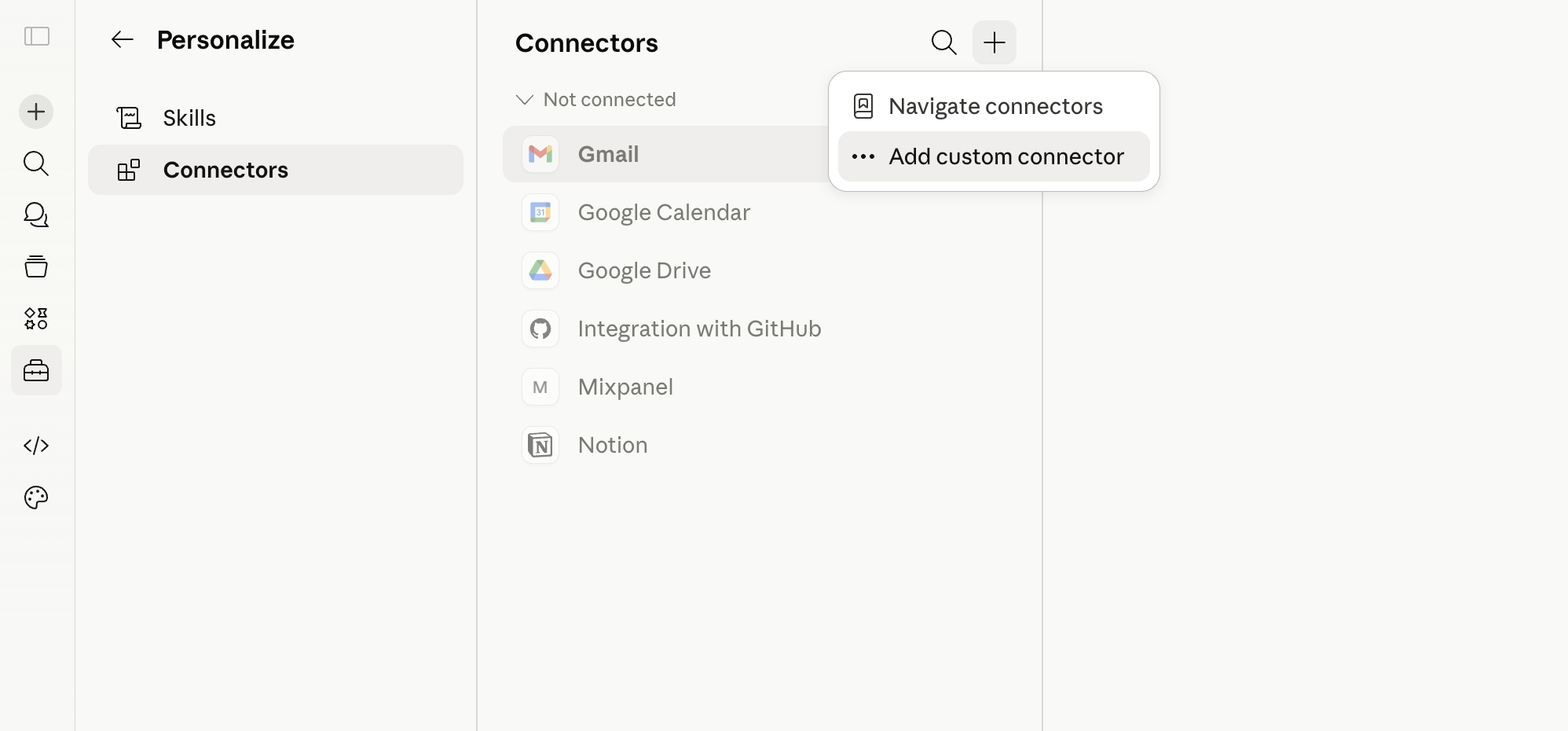
- Navigate to Customize > Connectors.
- Click the "+" button next to Connectors.
- Select "Add custom connector."
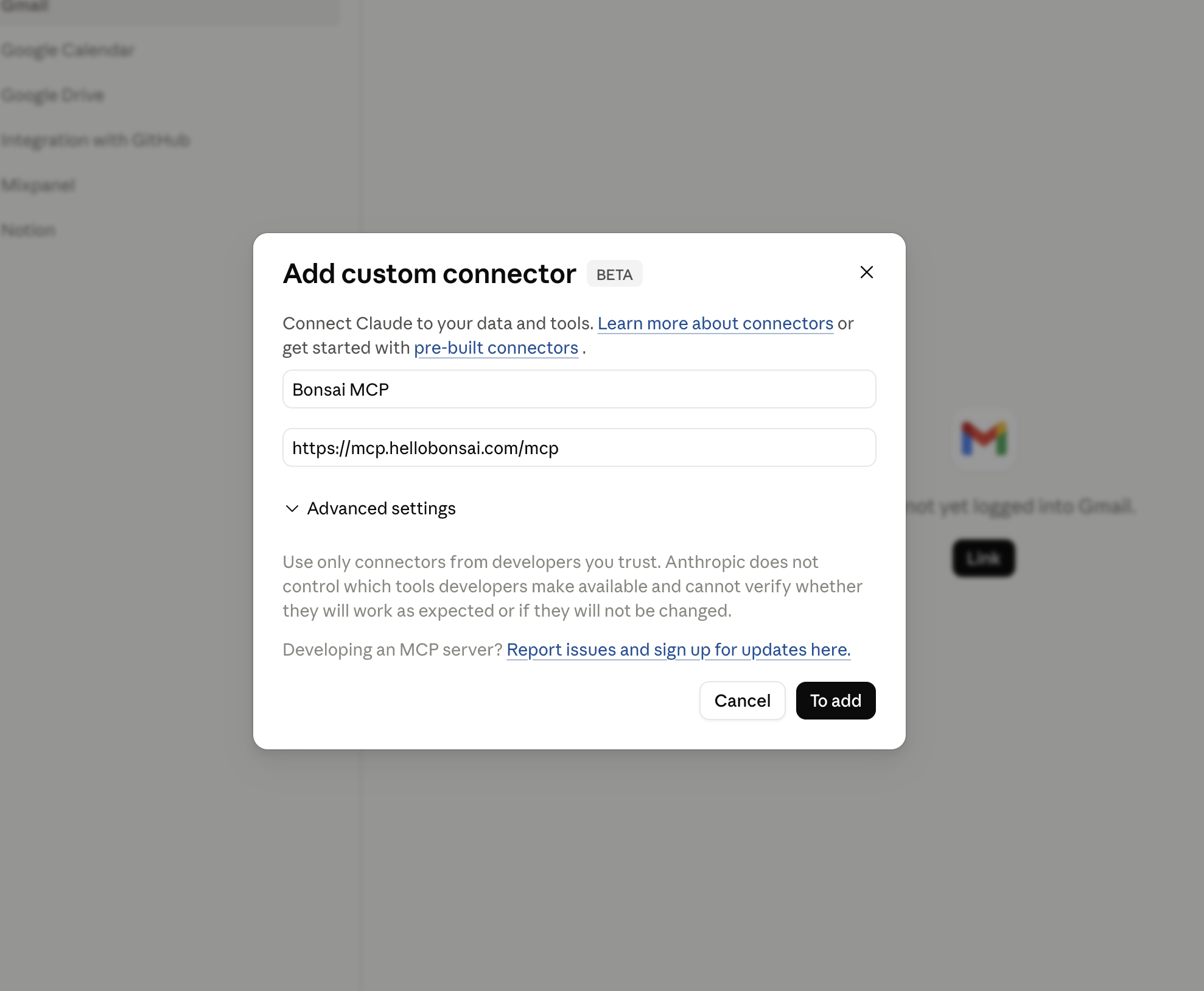
- Enter the connector's name and URL.
- Name: Bonsai MCP
- URL:
https://mcp.hellobonsai.com/mcp
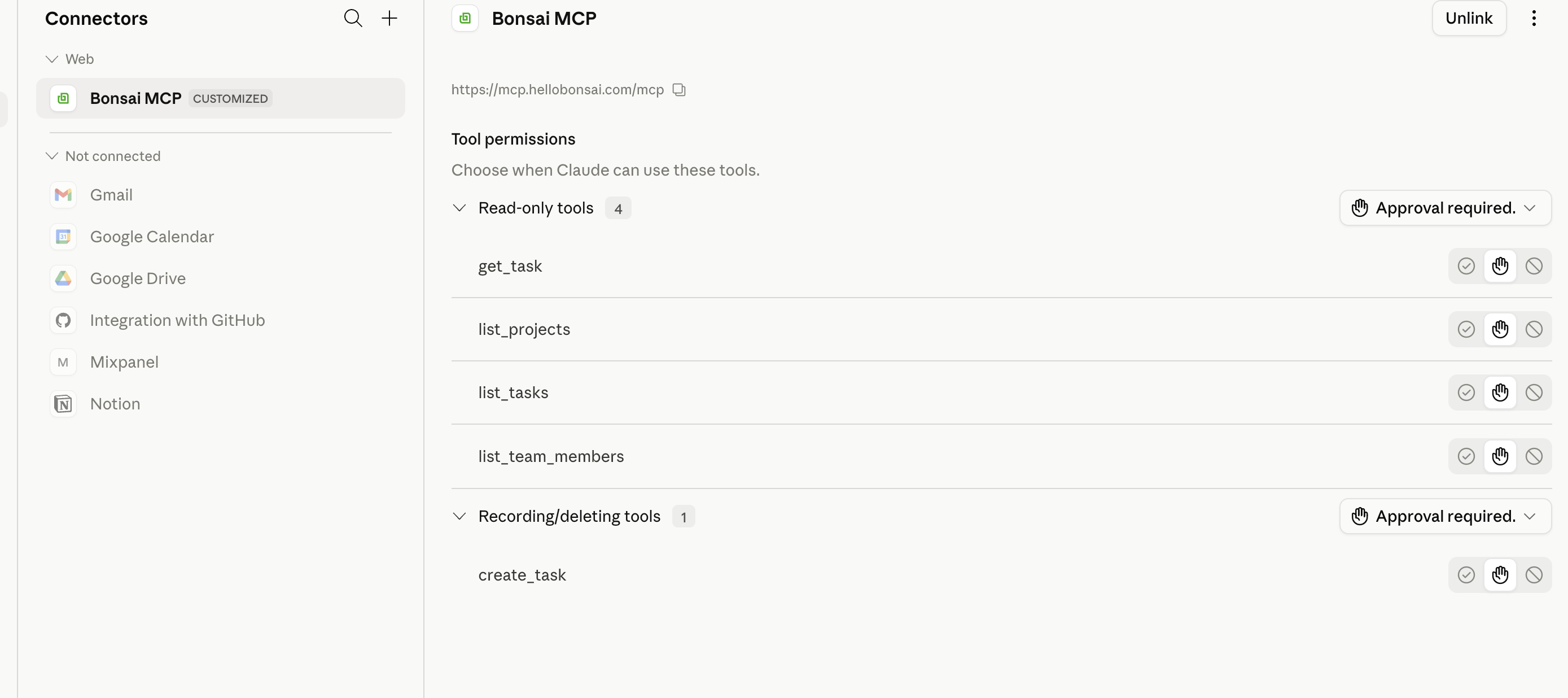
- Authenticate and you're done.
Claude / Claude Code
1. Add the server.
claude mcp add bonsai --transport http https://mcp.hellobonsai.com/mcp
2. Log in. The first time Claude calls the server, it opens a browser window to log in to Bonsai. There are no API keys to copy. Approve the access and you are connected.
3. Try it. Ask:
Show me my tasks for today and anything overdue.
To remove the server later, run claude mcp remove bonsai.
Cursor
1. Add the server. Open your mcp.json and add the Bonsai entry:
{
  "mcpServers": {
    "bonsai": { "url": "https://mcp.hellobonsai.com/mcp" }
  }
}
2. Log in. Cursor prompts you to authenticate the first time it reaches the server. Complete the Bonsai login in your browser to connect.
3. Try it. Ask:
Give me an overview of the Acme project: what's done, what's active, and what's due this week.
Codex
1. Add the server and log in.
codex mcp add bonsai --url https://mcp.hellobonsai.com/mcp
codex mcp login bonsai
The login command opens a browser window to authenticate with Bonsai.
2. Try it. Ask:
Create a high-priority task "Send revised SOW to client" for me, due tomorrow.
Other clients
Any client that supports remote MCP servers over HTTP can connect. Point it at:
https://mcp.hellobonsai.com/mcp
The server uses OAuth, so your client needs to support an OAuth login flow for MCP. On first use it sends you to Bonsai to log in and approve access. After that, your assistant can call any tool your account has permission for. See authentication and permissions for the full flow.
Tool reference
These are the tools the Bonsai MCP server exposes today, grouped by what they work with. You never call them by name. Your AI client picks the right tool from what you ask, so the example prompts show the kind of request that triggers each one.
You only see the tools your Bonsai permissions allow, so your list may be shorter than what's below.
Tasks, projects, deals, contacts, companies, and invoices all come back with a link straight to the record in Bonsai, so after your assistant creates or updates one you can click through and see it.
Parameter-level detail (every field, type, and filter) lives in the REST API reference. This page is the working list of capabilities.
Tasks
| Tool | What it does | Example prompt |
|---|---|---|
list_tasks |
List tasks, with filters for title, assignee, status, due date, priority, project, deal, and tag | "What's left to do on the BrightTech deal?" |
list_subtasks |
List the subtasks (child tasks) of a parent task | "What are the subtasks of the homepage launch task?" |
get_task |
Fetch one task by its ID | "Pull up the full details of that task." |
create_task |
Create a task with a title, project or parent task (as a subtask), deal, assignee, priority, due and start dates, a description, a time estimate, a status, and tags | "Create a high-priority task 'Send revised SOW' on the BrightTech deal for me, due tomorrow." |
update_task |
Update a task's title, project, deal, assignee, priority, due and start dates, description, time estimate, status, or tags | "Move the 'Send revised SOW' task to In Progress and reassign it to me." |
destroy_task |
Delete a task by its ID | "Delete the 'Send revised SOW' task." |
list_task_statuses |
List the board columns tasks can occupy (e.g. To Do, In Progress, Done) | "What task statuses does my board have?" |
Projects
| Tool | What it does | Example prompt |
|---|---|---|
list_projects |
List projects and when each one runs, with filters for title, public URL token, project group, and lifecycle status (active, archived, completed, or all) | "Which projects do I have running right now?" |
create_project |
Create a project for a company, with its dates and billing setup | "Start a fixed-fee project 'Website Redesign' for Acme at $5,000, wrapping up end of September." |
update_project |
Update a project's title, start and finish dates, billing setup, or project group | "Push the Website Redesign finish date to the end of October and move it to In Progress." |
Team
| Tool | What it does | Example prompt |
|---|---|---|
list_team_members |
List the people in your company, with their roles | "Who's on my team, and how many open tasks does each person have?" |
Deals and pipeline
| Tool | What it does | Example prompt |
|---|---|---|
list_deals |
List deals, with filters for title, number, and assignee | "What deals are open and who owns each one?" |
create_deal |
Create a deal for a company, with a value and pipeline stage | "Add a new deal 'Acme retainer' worth $12,000 to my pipeline." |
update_deal |
Update a deal's value, stage, owner, probability, or close date | "Move the Acme deal to Proposal Sent and set it to 60%." |
list_board_groups |
List your pipeline stages and project groups | "What stages does my deal pipeline have?" |
Contacts and companies
| Tool | What it does | Example prompt |
|---|---|---|
list_contacts |
List CRM contacts, with name, email, and company filters | "Find the contact for Alex at BrightTech." |
create_contact |
Create a contact, optionally linked to a company | "Add Alex Rivera, alex@brighttech.com, as a contact at BrightTech." |
update_contact |
Update a contact's name, email, job title, or phone | "Update Alex's job title to VP of Marketing." |
list_companies |
List CRM companies, with a name search; each result carries the full profile | "Do we already have BrightTech in our CRM, and what industry are they in?" |
create_company |
Create a company, with domains, a primary contact, and its profile — description, industry, size, source, and social links | "Create a company BrightTech with the domain brighttech.com, in the technology industry, 11-50 people." |
update_company |
Update a company's name, domains, primary contact, or any profile field | "Set BrightTech's industry to finance and add their LinkedIn page." |
Comments
| Tool | What it does | Example prompt |
|---|---|---|
list_comments |
List the comments on a task or a deal, newest first, optionally including system activity | "What's the latest discussion on the homepage launch task?" |
create_comment |
Post a comment on a task or a deal | "Add a comment to the Acme deal: 'Client approved the proposal.'" |
Notes
| Tool | What it does | Example prompt |
|---|---|---|
list_notes |
List notes, most recently written first, filtered by the record they are attached to, their author, or the day they are about | "What notes do we have on BrightTech?" |
get_note |
Read one note in full, including its body, which a list never returns | "What did we write down in that BrightTech kickoff note?" |
create_note |
Write a note, in Markdown, attached to a company, project or contact, or standing on its own, and keep it private if you like | "Write up my call with BrightTech as a private note on their company record." |
update_note |
Rewrite what a note says, or change its title, the day it is about, or who can read it, keeping the rest of the note intact | "Add a line to the BrightTech kickoff note: they confirmed the budget this morning." |
destroy_note |
Delete a note for good, handing back what it said so you can see what went | "Delete that duplicate BrightTech kickoff note." |
create_note_link |
Attach a note you already wrote to a client company, a project or a contact | "Also file that kickoff note under the Acme Website project." |
destroy_note_link |
Detach a record from a note, leaving the note itself in place | "That note isn't about BrightTech — unlink it from their company." |
Tags
| Tool | What it does | Example prompt |
|---|---|---|
list_company_tags |
List your account's tags (labels used across clients, deals, projects, tasks, and more), with name and type filters | "What tags do we use to organize our work?" |
Time entries
| Tool | What it does | Example prompt |
|---|---|---|
list_time_entries |
List logged time, with filters for date range, owner, project, company, billing status, and currency | "How much time did I log on the Acme project last month?" |
create_time_entry |
Log time against a project or task, with notes, an hourly rate, billable status, and who logged it | "Log 2 hours on the Acme Website project for today with a note about the homepage build." |
update_time_entry |
Update a logged entry's duration, date, project or task link, notes, rate, billable status, billing status (mark it billed or move it back to unbilled), or owner | "Mark all my unbilled time on the Acme project as billed." |
Invoices
| Tool | What it does | Example prompt |
|---|---|---|
list_invoices |
List invoices, each with how it repeats and which series it belongs to, with filters for invoice number, project, and company | "Look up invoice 1032." |
create_invoice |
Create a one-off, recurring, or subscription invoice for a client company and project, with optional line items and due terms | "Set up a monthly retainer invoice for BrightTech on the Website Redesign project, $3,000, ending next April." |
update_invoice |
Update an invoice's billing contact, currency, title, or due terms | "Change invoice 1032's due date to July 30." |
create_invoice_item |
Add a line item to an invoice you just created, recomputing its total | "Add a line 'Extra revisions, 3 hours at $100' to that invoice." |
update_invoice_item |
Update a line item on an invoice, recomputing its total | "Change the 'Extra revisions' line on that invoice to 4 hours." |
destroy_invoice_item |
Remove a line item from an invoice, recomputing its total | "Remove the 'Extra revisions' line from that invoice." |
Payments and reports are planned for upcoming milestones and will appear here when they ship.
Example prompts
A starting point if you're staring at a blank chat. These are grouped by what you're trying to get done. Swap in your own project, client, and people names. Your assistant works out which tools to use, so you can phrase things however feels natural.
Morning digest
- "Show me my tasks for today and anything overdue this week."
- "Build me a morning digest of my open tasks, grouped by project, with urgent and high-priority items at the top."
- "Summarize everything I owe today, with the project and due date for each task."
Task creation
- "Create a high-priority task 'Send revised SOW to client' for me, due tomorrow."
- "From the action items above, create one task per item under the Acme Website project and assign each to the right person."
- "Capture the action items from this meeting transcript as tasks in the right project, and confirm each one with me before creating it."
Project status
- "Give me an overview of the Acme project: how many tasks are done, who's active, and what's due this week."
- "Summarize Project Apollo for a client update email."
- "Group every task in the Acme Website project by status and tell me who owns each one."
Pipeline and deals
- "What deals are open right now, and who owns each one?"
- "Add a new deal 'Acme retainer' worth $12,000 to my pipeline."
- "Move the BrightTech deal to Proposal Sent and set the probability to 60%."
- "What's left to do on the BrightTech deal, and who owns each task?"
- "Create a task 'Draft the SOW' on the BrightTech deal and assign it to me."
Post-meeting CRM
- "Create a contact for Alex Rivera, alex@brighttech.com, at BrightTech."
- "Do we already have BrightTech in the CRM? If not, create it with the domain brighttech.com."
- "From this call, create the company and its main contact, then add a follow-up task to send a proposal."
Time tracking
- "Log 2 hours on the Acme Website project for today with a note about the homepage build."
- "Track 45 minutes against the 'Send revised SOW' task as billable."
- "Log 1.5 hours of non-billable time on Project Apollo for yesterday."
- "Show me my unbilled time on the Acme project last month, then mark it as billed."
Invoicing
- "Invoice BrightTech for the Website Redesign project: 10 hours at $150, due in 14 days."
- "Create an invoice for Acme for the Website Redesign project and confirm the billing contact with me first."
- "Add a line 'Extra revisions, 3 hours at $100' to the invoice you just created."
- "Set Acme up on a monthly $3,000 retainer for Project Apollo, charged to the card they have on file, running until next April."
- "Which of my invoices are subscriptions, and when does each one stop?"
Authentication and permissions
The MCP server uses OAuth. There are no API keys to create, copy, or paste. Your AI client handles the login for you, and the server only ever acts as you, within your existing Bonsai permissions.
How login works
Bonsai's authorization server runs OAuth 2.1 with the authorization code flow and PKCE. In practice:
- The first time your client calls the server, it sends you to Bonsai to log in.
- You approve access in the browser. Bonsai hands your client a token; the MCP server never sees your password.
- Your client uses that token on every call. The MCP server passes it straight through to Bonsai and never stores it.
Most clients register themselves automatically the first time you connect (Bonsai supports dynamic client registration), which is why the setup is just one command or a small config snippet with no developer portal step.
Access tokens are short-lived (15 minutes) and your client refreshes them in the background, so you stay connected without logging in again each time.
What it can access
There are no scopes to pick. The token inherits your role in the company you logged into, and every call is checked against your Bonsai permissions on the server. The MCP can never do more than you can do in the app. If your role can't create deals, neither can your assistant, and the tool simply won't appear for you.
When you connect, the server reads your permissions once and only shows the tools you're allowed to use. Every tool call is also re-checked at request time, so a tool you aren't permitted to use returns a permission error rather than acting.
Permissions narrow what comes back, too, not just which tools you get. A role without access to financial data gets time entries and tasks with the money fields left out, and lists such as pipeline stages and tags only cover the records that role can already see in the app. A hidden field can't be used to sift results either: asking for time entries by billing status without access to billing is refused rather than answered, because the answer would give away the very thing being hidden.
Checking what you can access
Your access through the MCP mirrors your role in Bonsai, so the tools you see match what you can already do in the app. To review or change what you can do, open your role and permission settings in your Bonsai account, or ask your company owner or admin.
Disconnecting
To stop the connection, remove the Bonsai server from your AI client (for example, claude mcp remove bonsai). That stops it from making any further calls on your behalf. Your client can also revoke its token through Bonsai's OAuth revocation endpoint.
Security best practices
The MCP server acts as you. It can read and change your Bonsai data on your behalf, so a few habits keep that safe:
- Connect only AI clients you trust. Treat the MCP like any app you would grant access to your account, and add it only in clients you know and control.
- Your data goes to your AI provider. When you use the MCP, the Bonsai data you ask about is sent to whichever AI client and model you have chosen. Review that provider's data handling before connecting a sensitive account.
- Access follows your Bonsai role. The server can never do more than your account can. If you want to limit what is reachable, connect from an account with the right permission level rather than an owner account.
- Review actions before confirming, especially writes. Creating and updating tasks, deals, contacts, companies, time entries, and invoices changes real data, and invoices and logged time bill against your projects. Ask your assistant to confirm before it creates or edits anything, and check the result.
- Mind shared environments. In a shared or team AI workspace, your conversation history, and the Bonsai data in it, may be visible to others.
- Disconnect when you're done. If you no longer need the connection, remove the server from your client. See disconnecting.
Rate limits
Bonsai allows up to 10,000 requests every 10 minutes per IP address. Normal use through an AI assistant stays well within this, so you shouldn't run into the limit in everyday work. If a burst of automated activity gets throttled, ease off for a moment and try again.